> For the complete documentation index, see [llms.txt](https://docs.heypoplar.com/llms.txt). Markdown versions of documentation pages are available by appending `.md` to page URLs; this page is available as [Markdown](https://docs.heypoplar.com/creative-guides/static-pdf-and-png-jpg.md).
# Static: PDF & PNG/JPG
Welcome to the Static Creative Guide! Here you can find export instructions, print best practices, and much more
## Adobe Creative Suite
(*InDesign, Illustrator, Photoshop*)
If you’re using a professional Adobe tool, we strongly recommend exporting your creative as a **Print-Ready PDF** using the correct **\[PDF/X-4:2008]** standard.
Download design files from [Templates & Specs](https://docs.heypoplar.com/creative-design/templates-and-specs).
### File Requirements
* **File type**: PDF/X-1a:2003 or PDF/X-4:2008 (***Required***)
* **Color mode**: CMYK (*PDF/X-4 supports ICC profiles for broader color control*)
* **Resolution**: 300 PPI
* **Font embedding**: All fonts must be embedded or outlined
* **Size limit**: Under 5MB (*per side*)
* **Trim Size + Bleed**:
* 4" x 6" → **4.25" x 6.25"**
* 6" x 9" → **6.25" x 9.25"**
* 6" x 11" → **6.25" x 11.25"**
{% hint style="warning" %}
Bleed must be included in the final export; do not add white borders or crop marks. Our address block is auto-applied, so **do not include one** in the back artwork.
{% endhint %}
### About PDF/X Standards
* **PDF/X-1a**: Requires flattened transparencies and CMYK-only color
* **PDF/X-4** (*Recommended*): Supports ICC color profiles and native transparency for better print quality
## Adobe InDesign Setup
1. Create a new document with **0.125” bleed** on all sides
2. File → Export → Format: Adobe PDF (Print)
3. Preset: **PDF/X-4:2008**
4. Marks & Bleeds → **✓ Use Document Bleed Settings**
5. Export
{% hint style="warning" %}
If you skip the bleed settings, your export will default to the artboard/canvas size and trigger an upload error.
{% endhint %}
## Adobe Illustrator Setup
1. Create your document with 0.125” bleed
2. File → Save As → Adobe PDF (Print)
3. Preset: **PDF/X-4:2008**
4. Bleeds → **✓ Use Document Bleed Settings**
5. Make sure **no printer marks** are checked
6. Delete (not just hide) trim/safe zone layers
7. Save PDF
## Canva, Figma, or Other Tools
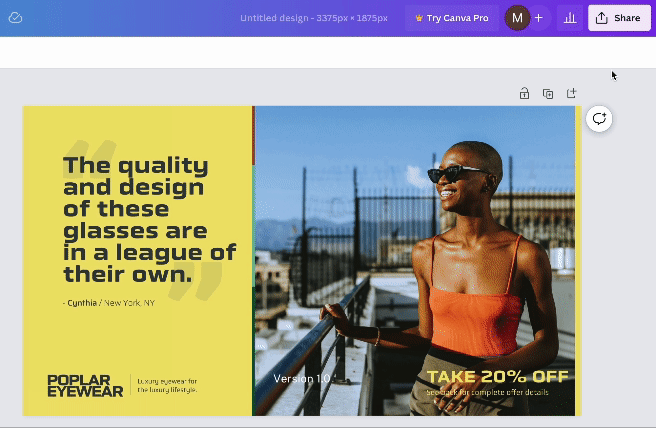
If you're using Canva, Figma, or another non-Adobe tool, we recommend exporting your artwork as **high-resolution PNGs** with built-in bleed.
{% hint style="warning" %}
Creative **MUST** be exported in pixels — **NOT** inches
{% endhint %}
### File Requirements
* **File type**: PNG or JPG
* **Resolution**: 300 PPI
* **Color mode**: RGB accepted, but may shift during CMYK printing
* **Bleed**: Must be added manually in the overall pixel dimensions *(see final dimensions below)*
* **Size limit**: Under 5MB
* **Front and Back creatives must be exported separately**
### Dimensions with Bleed (in Pixels)
| 4” x 6” | 1275 × 1875 |
| ----------------- | ----------- |
| 6” x 9” | 1875 × 2775 |
| 6” x 11” | 1875 × 3375 |
| Bifold Short-Fold | 1725 × 5175 |
| Bifold Long-Fold | 3375 × 2625 |
| Trifold | 2625 × 4987 |
| 8.5” x 11” Letter | 3300 × 2550 |
### Canva Export Instructions
1. Set document dimensions using the **pixel values** above
2. Share → Download
3. File type: **PNG**
4. Download **Front** and **Back** separately
## QR Code Best Practices
* **Minimum size**: 0.75" wide
* **Test your QR Code**: Always scan the PDF export to ensure the QR works
* **Adobe InDesign** has a built-in vector QR generator
* **All caps** in QR code content results in a **smaller QR code**
## ✅ Final Checklist (All Tools)
* [ ] Includes proper **bleed and safe area**
* [ ] File is **under 5MB**
* [ ] **CMYK-compatible** color or ICC profile (Adobe)
* [ ] Fonts **outlined or embedded**
* [ ] File dimensions match one of the standard formats (see [Templates & Specs](/getting-started/campaign-setup/creative.md))
* [ ] **No crop marks** or printer marks included
---
# Agent Instructions
This documentation is published with GitBook. GitBook is the documentation platform designed so that both humans and AI agents can read, navigate, and reason over technical content effectively. Learn more at gitbook.com.
## Querying This Documentation
If you need additional information that is not directly available in this page, you can query the documentation by asking a question.
Perform an HTTP GET request on the following URL with the `ask` and `goal` query parameters:
```
GET https://docs.heypoplar.com/creative-guides/static-pdf-and-png-jpg.md?ask=&goal=
```
`ask` is the immediate question: it should be specific, self-contained, and written in natural language.
`goal` is what the user is ultimately trying to achieve, the reason they need the answer. Sharing it helps GitBook give you a better, more relevant answer. A goal is most helpful when it describes the outcome the user wants rather than restating the question. For example, with `ask=how do I create an API token`, a goal like `automate deployments from our CI pipeline` lets GitBook tailor the answer to that use case.
The response will contain a direct answer to the question and relevant excerpts and sources from the documentation.
Use this mechanism when the answer is not explicitly present in the current page, you need clarification or additional context, or you want to retrieve related documentation sections.