> For the complete documentation index, see [llms.txt](https://docs.heypoplar.com/llms.txt). Markdown versions of documentation pages are available by appending `.md` to page URLs; this page is available as [Markdown](https://docs.heypoplar.com/integrations/supported-platforms/simon-data.md).
# Simon Data
Before setting up your Simon > Poplar Integration you must reach out to Simon to have their customer success team add the webhook option to your Flows and have our Poplar API URLs whitelisted.
Refer to our SLM Webhooks documentation for configuration settings. If you have any questions please reach out to your Simon or Poplar account manager for details.
1. Log into Simon and **create a segment.**
2. From the segment overview, select " **Create Flow**" at the top right.
3. Name the flow and make sure the select " **Triggered**" option.
4. Simon will only send over once a day, so we recommend setting it to 1:30pm Eastern Time in order to hit our print cut-off.
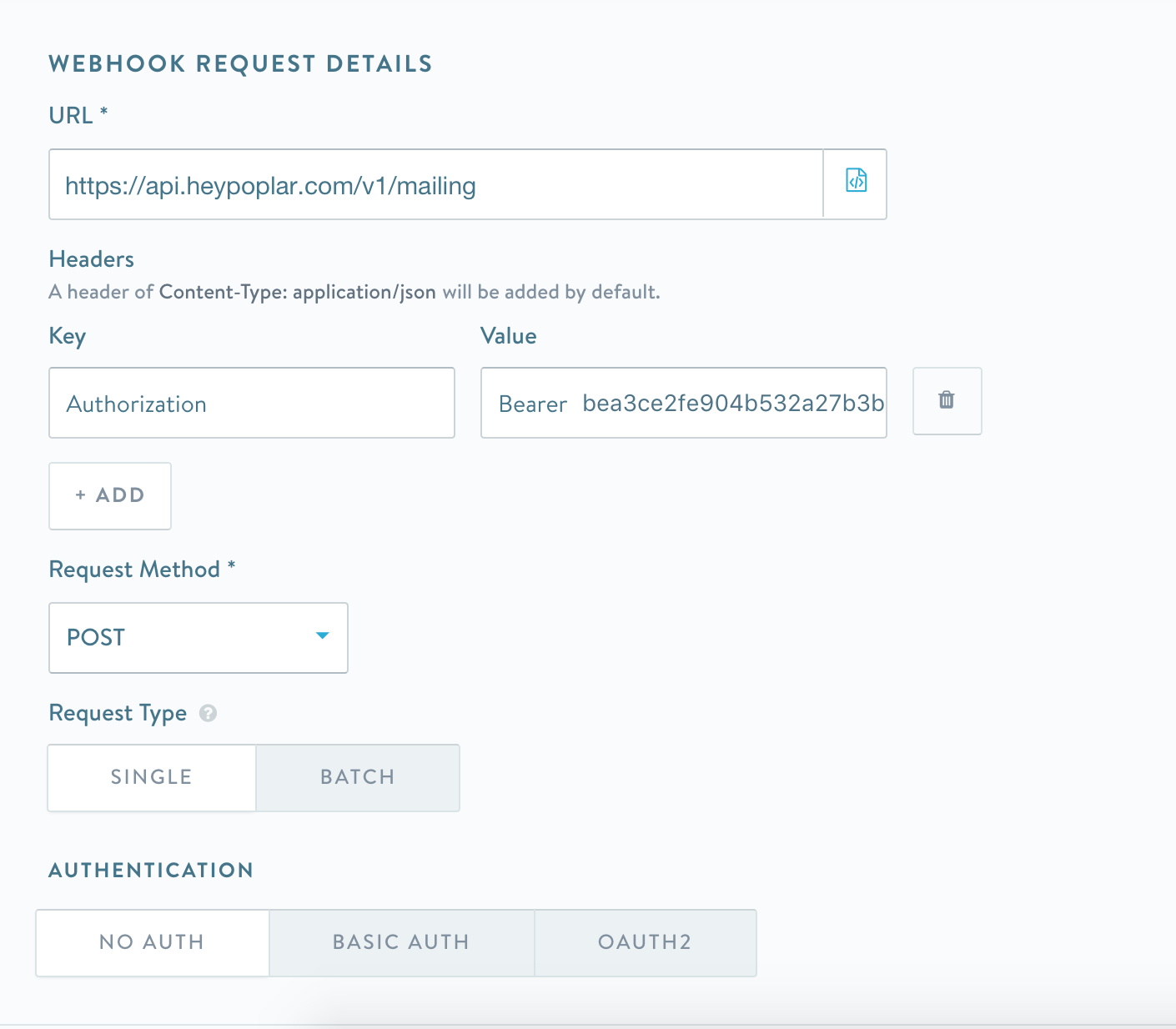
5. Follow the below instructions to populate the corresponding header values, and Payload. We recommend using a **test api key** for the webhook to start so you can confirm mailings are being created successfully *prior* to using a **production api key.**
6. Send a test webhook at the bottom and you should see it show up in the history tab of your campaign.
7. Any new users in the audience segment will be pushed to our platform once a day at the time you set.
8. Our API URL: `https://api.heypoplar.com/v1/mailing/`
9. Add headers: When pasting in the API key make sure that there is one space before the key and to include the word "Bearer" before it.
***
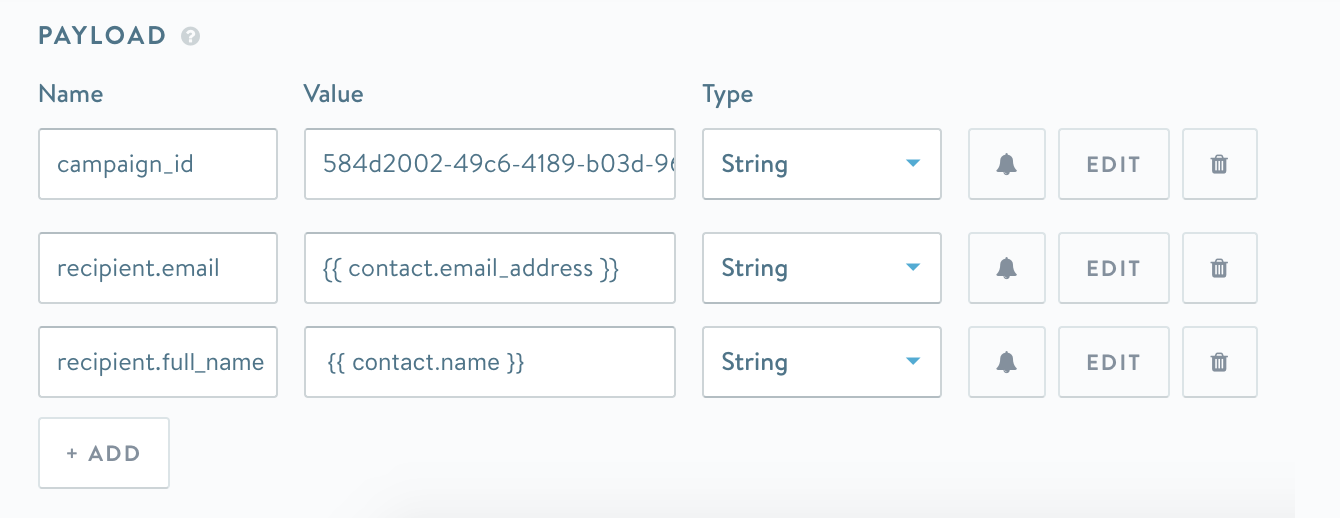
### **Email Address Append**
### **Recipient Address configuration:**
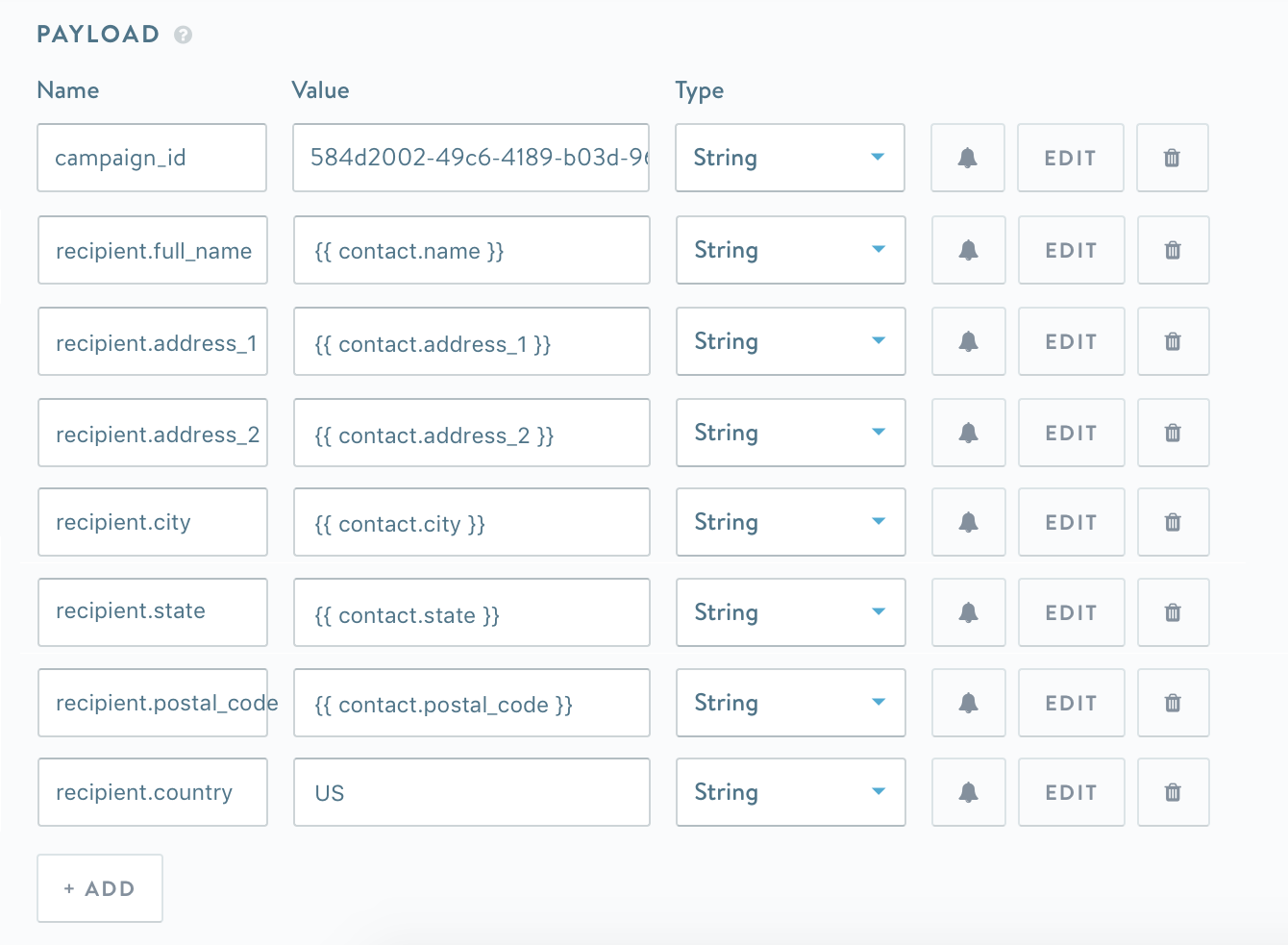
You can lookup your `campaign_id` on the campaign detail page on Poplar.
Pull in the recipient data (either email and/or address data, as well as any variable data for the piece by leveraging recipient values you have stored in Simon)
Your Simon Data variables may be different than the above, it's best to click edit for each value and populate it from the Simon window.
If you want to use the full address instead of using the email append you'd use: `recipient.address_1`, `recipient.address_2`, `recipient.city`, `recipient.state`, `recipient.postal_code` with the corresponding values in your Simon setup.
Note: you can also add merge tags into the payload as `merge_tags.merge-tag-name` paired with a value. Replace `merge-tag-name` with the name of your merge tag. ex: `merge_tags.category`
**Preventing Null Values:**
When setting up the `address_2` field or other fields that you may not have data for every recipient make sure to add `or ""` within the variable which will send a blank string instead of a null value and prevent the request from erroring out.
Example if your Simon data field is:
`{{ contact.address_2 }}` update it to: {{ contact.address\_ or '' }}
---
# Agent Instructions
This documentation is published with GitBook. GitBook is the documentation platform designed so that both humans and AI agents can read, navigate, and reason over technical content effectively. Learn more at gitbook.com.
## Querying This Documentation
If you need additional information that is not directly available in this page, you can query the documentation by asking a question.
Perform an HTTP GET request on the following URL with the `ask` and `goal` query parameters:
```
GET https://docs.heypoplar.com/integrations/supported-platforms/simon-data.md?ask=&goal=
```
`ask` is the immediate question: it should be specific, self-contained, and written in natural language.
`goal` is what the user is ultimately trying to achieve, the reason they need the answer. Sharing it helps GitBook give you a better, more relevant answer. A goal is most helpful when it describes the outcome the user wants rather than restating the question. For example, with `ask=how do I create an API token`, a goal like `automate deployments from our CI pipeline` lets GitBook tailor the answer to that use case.
The response will contain a direct answer to the question and relevant excerpts and sources from the documentation.
Use this mechanism when the answer is not explicitly present in the current page, you need clarification or additional context, or you want to retrieve related documentation sections.